Creating Quizzes in Moodle

Note: If you’re new to creating quizzes, consider starting with the Quiz Quick Guide.

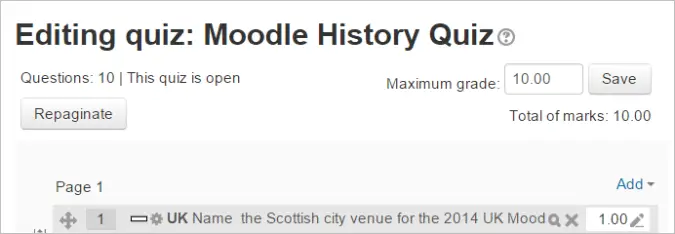
Once a quiz has been added to your course and its settings configured, you can begin building the quiz. To edit questions, simply click on the quiz name from your course homepage and select “Add question.” Alternatively, you can create questions in the Question Bank before setting up a quiz and then use them later.

Table of Contents

Adding Questions

When you’re ready to add questions, you can do so from various places within the quiz editing interface:

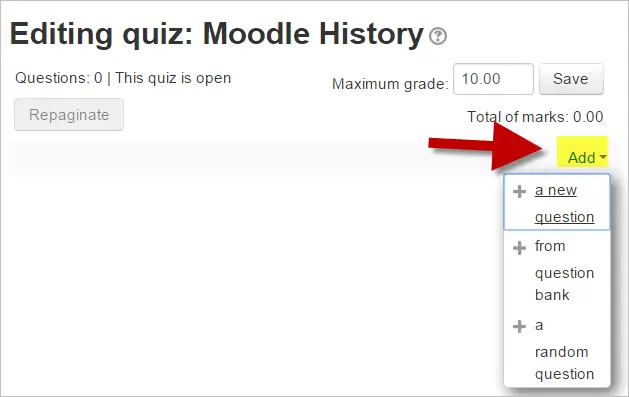
  1. Click the ‘Add’ link (Note: In the U.S., ‘marks’ are referred to as ‘points’).
  2. Choose to either create a new question, select a question from the question bank, or add a random question.

Creating a New Question

  1. Click ‘Add’ and then select ‘+ a new question’.
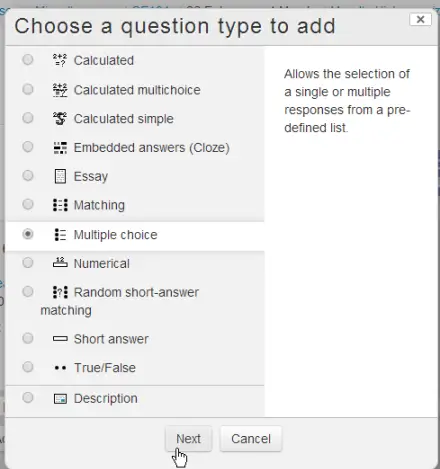
  2. Choose the type of question you want to create from the options provided, then click “Next.” Information about each question type will appear on the right as you select them.

3. Fill out the question form, ensuring to assign a grade to the correct answer.

4. Click “Save changes.”

Tip: For complex questions, you can preview and then save changes while continuing to edit.

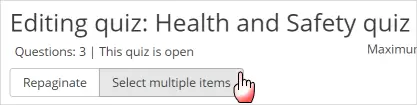
Once a question is created, its type (e.g., multiple choice) will be indicated by an icon and label. You can edit it using the edit icon and preview it with the magnifying glass icon. Additionally, you can delete individual questions or multiple questions by selecting them and clicking the delete icon.

Adding Responses and Feedback

  1. When adding responses and feedback, remember to expand the toolbar for additional formatting options.
  2. Continue adding questions by selecting ‘Add’ and ‘+ a new question’ each time.

Choosing Pre-Made Questions

If other instructors have created questions or if you’ve made questions in another quiz, you can add them to your current quiz:

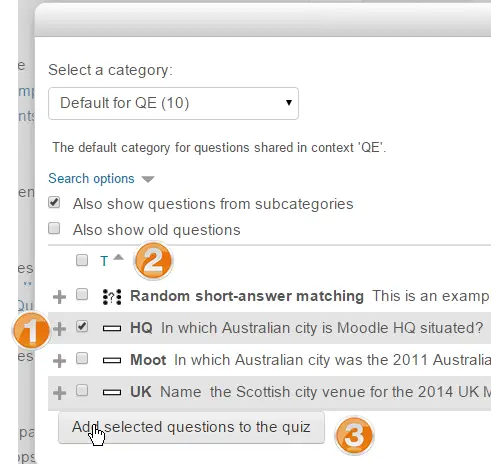
  1. Click ‘Add’ and select ‘+ from question bank’.
  2. Click the + sign next to the question you want to add.
  3. To add multiple questions, tick the checkboxes next to them or use the top box to select all, then click ‘Add selected questions to the quiz’.
  4. To sort questions, use the column headings.

Tip: Ensure that all available questions are displayed by selecting “show questions from sub-categories/old questions.”

Importing Questions

You can also import pre-made questions into your quiz via Quiz administration > Question bank > Import. Refer to the Import Questions guide for more details. Sample questions are available from the Moodle.net content database.

Adding a Random Question

If you have a pool of questions in the question bank, you can add random questions to your quiz:

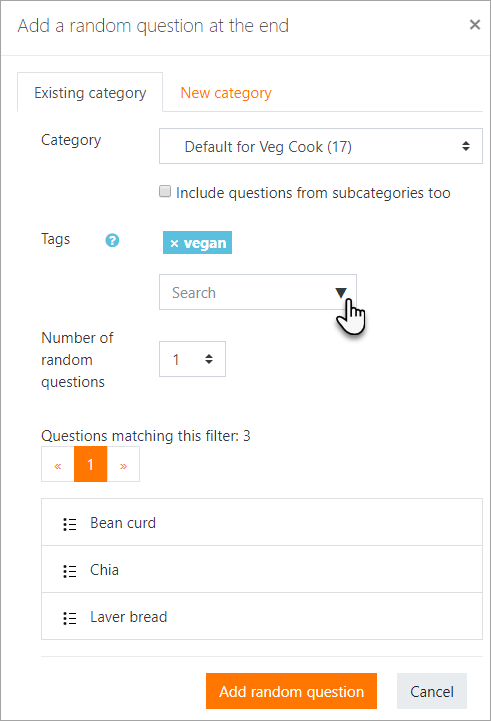
  1. Click ‘Add’ and then select ‘+ a random question’. This feature is useful for ensuring students receive different questions when taking the quiz simultaneously.
  2. The same question will not appear twice in a quiz, and random questions will always vary if you include more than one.
  3. If you mix random and non-random questions, Moodle will ensure there are no duplicates. Ensure you have enough questions in the category to avoid errors.

The grade for a random question will be adjusted to match the grade you’ve set for that question.

Question Tags and Categories

You can tag questions as you create them or later from the Question Bank. Tags help filter and search for questions when adding random questions.

Questions are organized into categories in the Question Bank. By default, new questions are added to the course’s category (e.g., “Default for Senior Physics”). You can create sub-categories or use existing ones for better organization.

Permissions dictate access to categories. For example, a teacher might only access categories within their course, while a department head might access categories across multiple courses.

Quiz Layout

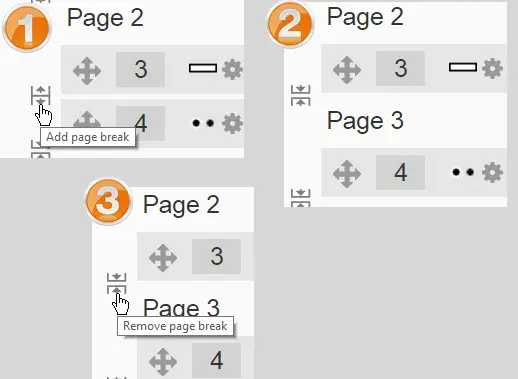
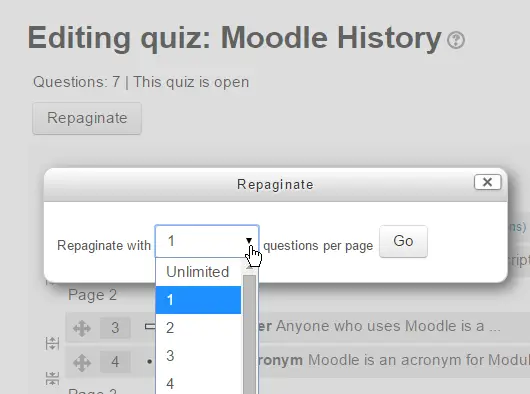
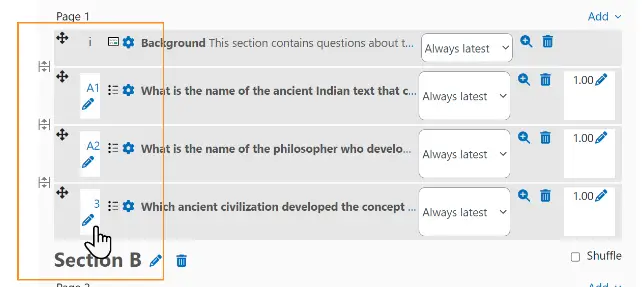
In the Layout section of quiz settings, you can choose to display each question on a new page or after a specific number of questions. You can also add page breaks between questions by clicking the arrow icon, remove pages, or repaginate the entire quiz layout.

Questions can be moved using the drag-and-drop feature, and section headings can be added by clicking the pencil icon or the dropdown menu to create a new section heading.

Randomizing Question Order

You can randomize the order of questions for students by ticking the ‘Shuffle’ box. If you have sections within the quiz, each section can be shuffled independently, allowing you to keep certain questions in a fixed order while randomizing others.

Conditional Questions

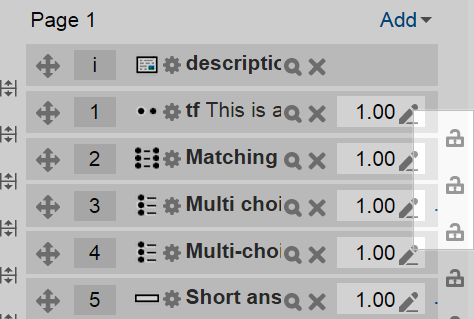
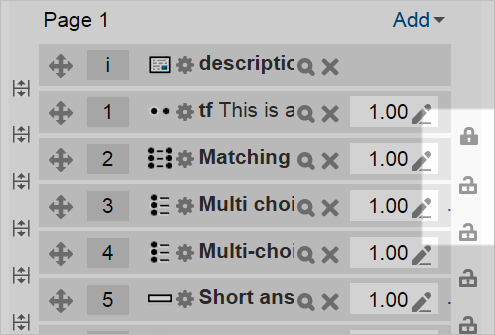
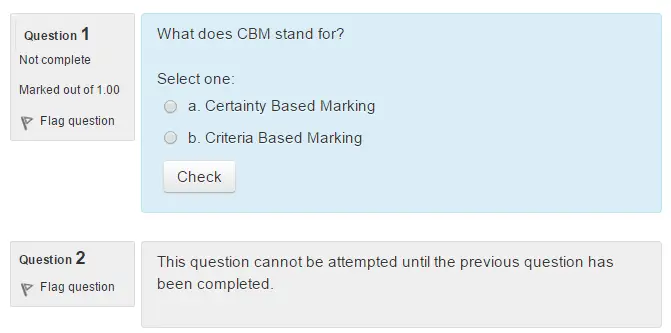
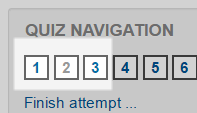
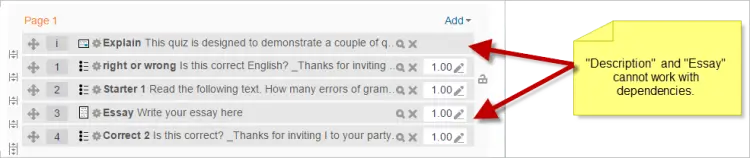
If using the “Interactive with multiple tries” or “Immediate Feedback” behavior, and with free navigation, you can make questions dependent on a previous question being answered. This is managed via padlock icons that appear next to each question.

Assigning Points to Questions

You can adjust the points for each question by changing the number in the box next to each question and modify the maximum grade for the quiz. The default setting is one point per question and a maximum grade of 100.

Quiz Section Grades

New in Moodle 4.4! Teachers can now assign grade items to specific questions within quiz sections. This allows for grades to be displayed not only for the overall quiz but also for individual sections.

To set this up:

  1. Click on the quiz and navigate to Questions.
  2. Select Grade item setup from the dropdown.
  3. Click ‘Add grade item’ and name it according to your required topic.
  4. Assign the grade item to questions as needed.

Customizing Question Numbers

You can customize the numbering of questions to match the format of an external test.

Previewing the Quiz

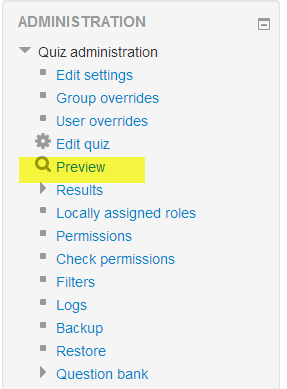
You can preview individual questions using the magnifying glass icon or preview the entire quiz by clicking the “Preview” button. Editing a question during preview requires restarting the preview to see changes.

For a more accurate view of how students will experience the quiz, consider using a “dummy” student account for testing instead of the ‘switch role to student’ feature.

After Quiz Attempts

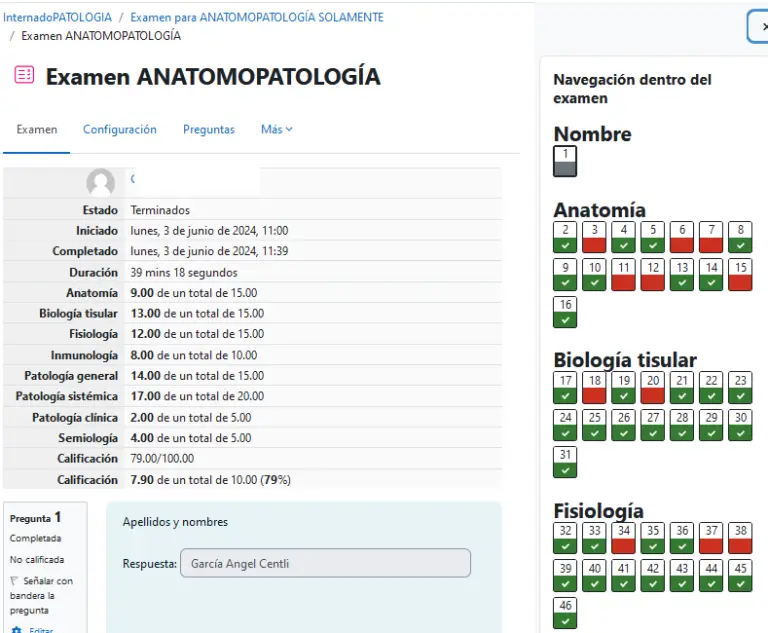
Once students have attempted the quiz, you’ll see a list of all questions and a notice indicating that questions cannot be added or removed. You can still modify question grades, preview questions, and edit them directly from the Question Bank. Be cautious when editing, as significant changes can impact existing quiz attempts.

If necessary, you can delete all student attempts to edit the quiz as if no one has taken it.

Handling Faulty Questions

There are several ways to address issues with quiz questions:

  1. Change the grade of the faulty question to 0.
  2. Edit the question, adjust the correct answer, and regrade the quiz. Be aware that changes will affect the question in future uses.
  3. Edit the question to clarify the situation for students, then set its grade to zero and regrade the quiz.
  4. Move or delete the faulty question from the category, though some prefer to move it to a “dead” or “bad” question category.

Remember, problematic questions can impact not just the current quiz but also any future quizzes that draw from the same question bank.

Chatbot
● Online
Hi there! I'm Windsor's AI assistant, I'm here to help!
What would you like to know about Windsor University?